▶️Problems with Ads?▶️
Problems with Ads?
In this article, you'll get some important info on various ad-related issues. In-game video ads are integrated through external, third-party ad networks. Because these external providers manage the ad inventory, delivery, and interactive playback, the content and functionality of the ads depend on their systems.
While we continually work with our partners to ensure the smoothest experience possible, technical hitches can occasionally occur. Below, you will find solutions for the most common ad-related situations:
A Specific Ad Freezes, Doesn't Finish, or Fails to Grant Rewards
If you encounter a problem with a single specific ad (such as freezing, failing to reach the end screen, or not crediting rewards):
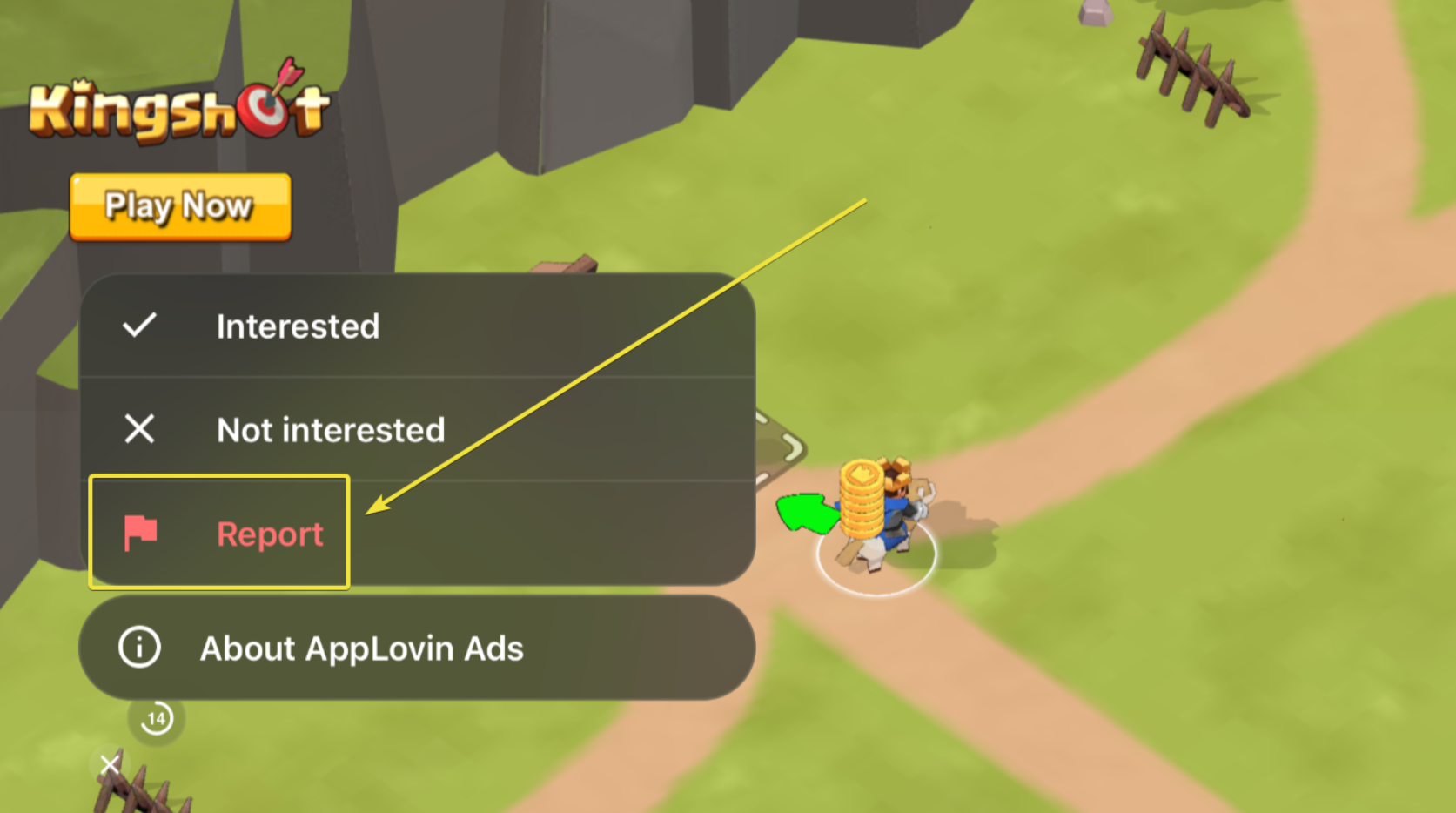
Report it directly to the provider:
🟦Tap the small "Info" or "Privacy" icon (usually an i or triangular logo located in one of the screen corners).
🟦From the pop-up options, choose Report
🟦This sends the problematic ad ID directly to the provider’s ad quality team for investigation.
KEEP IN MIND
Please note that the interface or phrasing of the buttons is very likely to differ from what you see in the image below in case you come across an advertisement from other providers.
Ads Cause the Game to Crash (This Happens with Any Ads)
If launching any video ad consistently crashes or reloads your game, your device's memory or cache may be overloaded:
Restart your device & network:
🟦Completely close the game
🟦Reboot your phone or tablet
🟦Switch between Wi-Fi and mobile data(or toggle Airplane mode on and off) to ensure a stable connection
🟦Clear the cache (Android): Go to Settings > Apps > TrainStation > Storage & Cache > Clear Cache.
🟦Reinstall the game: Uninstall the app, restart your device, and reinstall the latest version from your app store.
IMPORTANT NOTICE
Ensure your game progress is safely linked to your Pixel ID before uninstalling! In case you are not interested in saving your progress via Pixel ID e-mail registration, write down or screenshot your Player ID in the settings of the app before you proceed with the steps described above.
"No Video Available" Message
Sometimes video offers are temporarily greyed out or return a "no video available" message. Third-party ad providers automatically distribute video slots based on daily caps, geographic location, device capabilities, and current advertiser inventory.
Tips to help restore availability:
🟦Reload the game: Force-close and relaunch the app to fetch a refreshed ad pool.
🟦Wait a couple of minutes: After seeing the message, play normally or wait 1–2 minutes before trying to view a video again.
🟦Network & Cache: Try clearing your app cache (or offloading/reinstalling on iOS)and ensure your internet connection is solid.
KEEP IN MIND
Because third-party providers regulate their own regional inventory, video availability can fluctuate throughout the day and cannot be manually guaranteed on our end.
Missing "X" or Close Button / Cannot Close the Ad
Some modern interactive ad formats require user interaction or utilize multi-step closing sequences:
Certain networks deliberately prompt an app store redirect before revealing the final close icon.
If tapping the close button redirects you or doesn't close immediately, do not give up after one or two attempts.
🟦Return to the game window and wait a few seconds; an "X", "Skip", or >> button will usually appear to let you claim your reward and exit.
Inappropriate, Adult, or Political Content
We aim to keep our game safe and enjoyable for everyone. If an ad displays offensive, adult, or inappropriate political content:
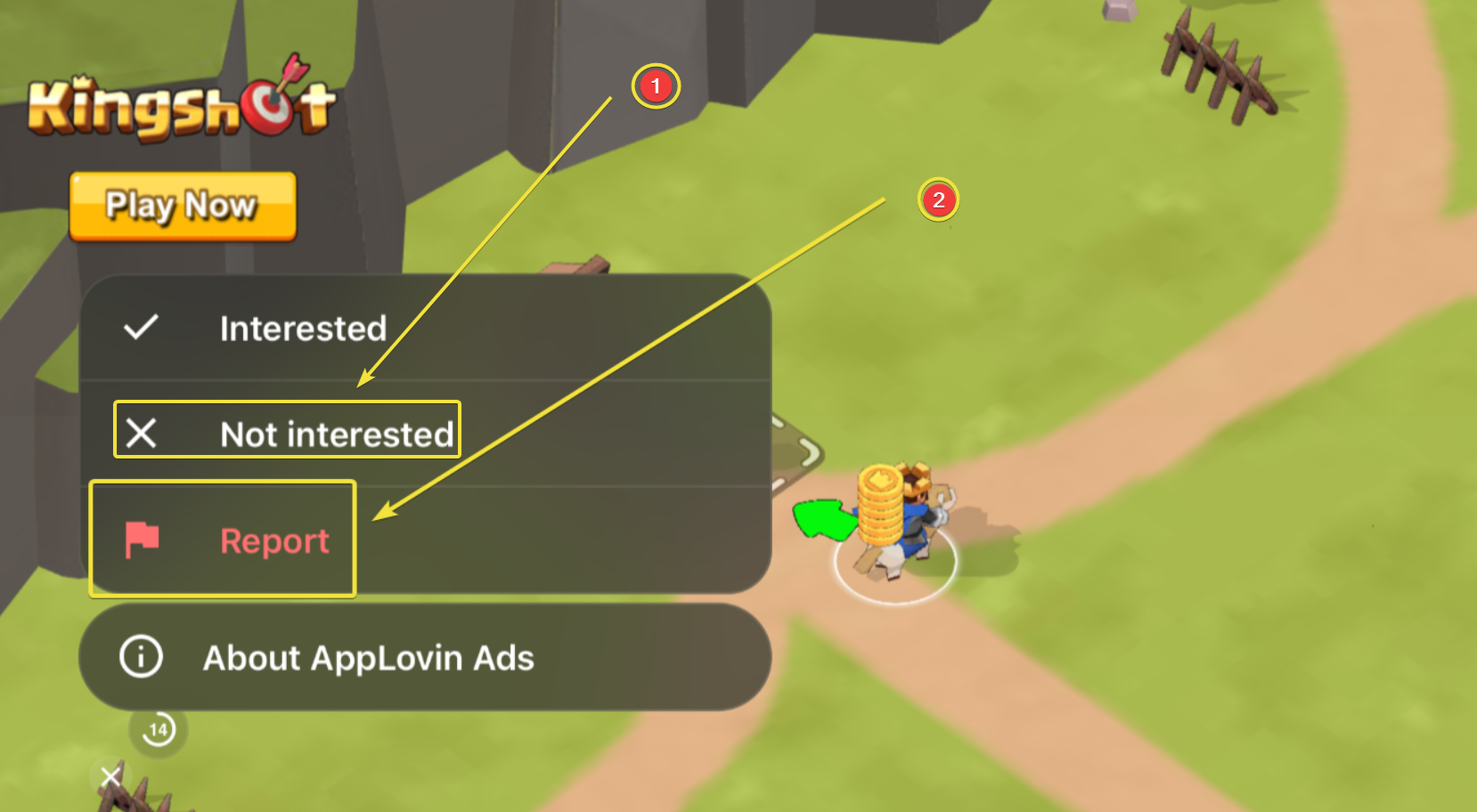
🟦Tap the Info icon (i) directly on the ad screen.
🟦Select Report / Inappropriate Content. This alerts the ad network immediately to flag and remove that specific creative from rotation.
🟦Select Not Interested (this is a less efficient option, recommended only if the Report button is missing from the selection).
KEEP IN MIND
Please note that the interface or phrasing of the buttons is very likely to differ from what you see in the image below in case you come across an advertisement from other providers.
Emulators and Low-RAM Devices
Video ads load heavy third-party web views and video players that demand substantial memory.
If you play on an Android PC emulator (such as BlueStacks, Nox, etc.) or a device with limited RAM, memory crashes and black-screen ad freezes are frequently unresolvable due to system emulation conflicts or hardware limitations.
While clearing cache, restarting, and reinstalling can sometimes provide temporary relief, these steps cannot guarantee stable ad playback on lower-spec hardware or emulators.
KEEP IN MIND
Trainstation 3 is only made for mobile devices (Android, iOS); it isn't available on desktop. Playing on other devices like Chromebooks or using emulators can cause all sorts of issues, and unfortunately, we can’t really guarantee optimal performance and provide support for the game.
Thank you for your patience and for helping us keep the game running smoothly!